

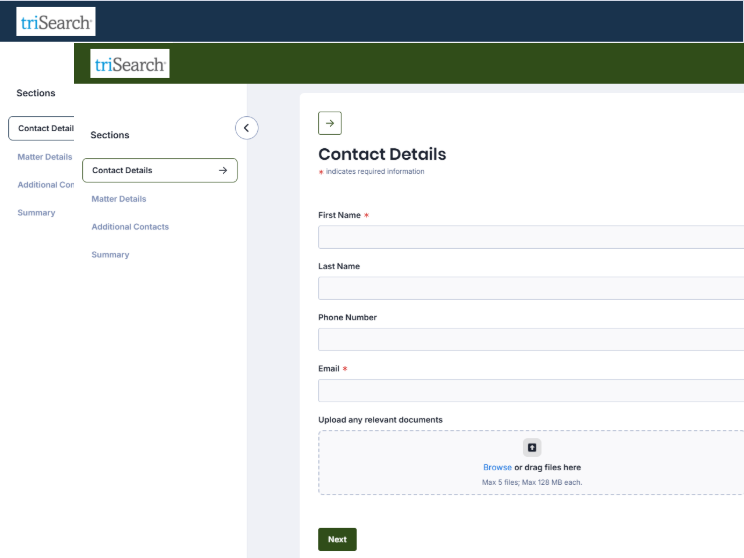
Learn how to customise the look and feel of the Intake Forms you send to clients and prospects, to deliver a more professional client experience that aligns with your firm's brand.
Table of Contents
Accessing Intake Form Settings
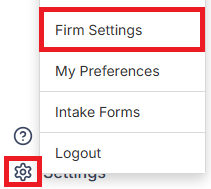
2. Select Intake Forms from the left menu.
3. Select Branding.
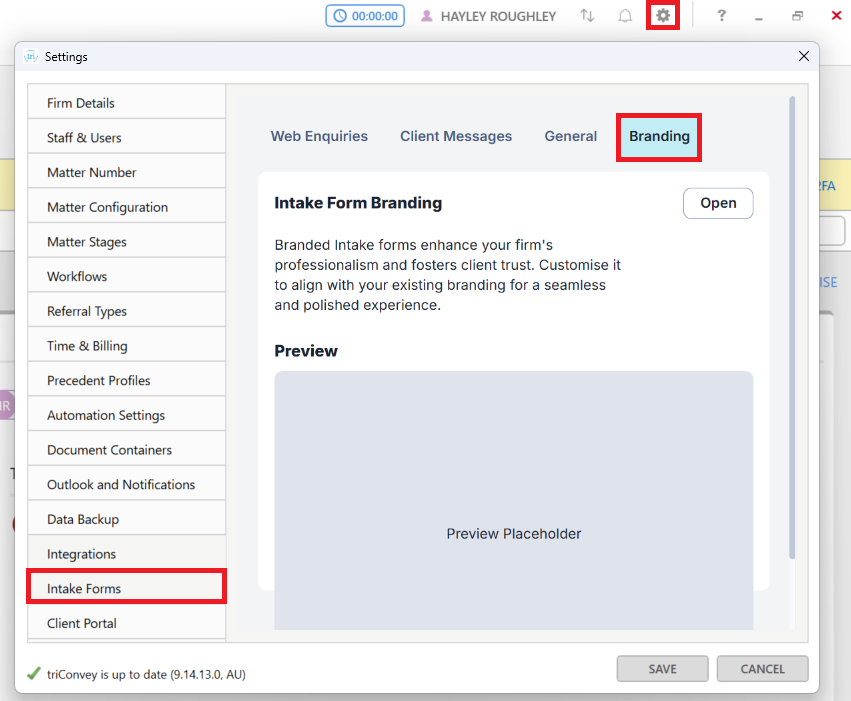
2. Select Intake Forms from the left menu.
3. Select the Branding tab.
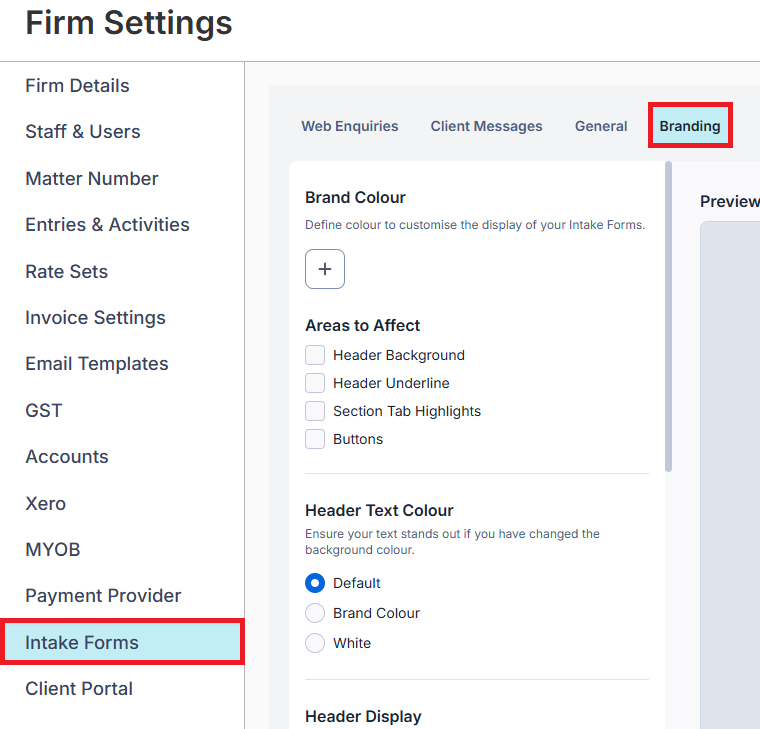
Areas that can be customised
The main areas you can customise are the:
- Brand Color
- Shape of the Intake Form fields and buttons
- Logo
Choosing your brand colour
Click on the Color icon to pick a colour that reflects across your Intake Forms. You can also input a HEX code if relevant.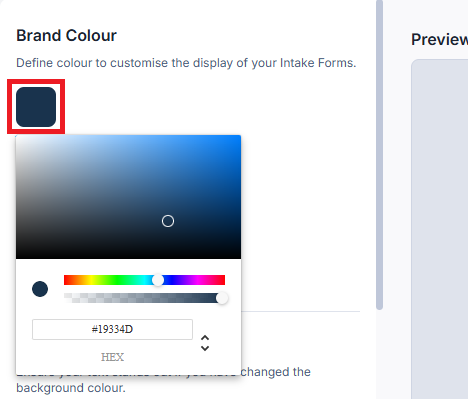
The brand colour will be displayed under the following Areas to Affect if you tick any of the selections:
Header Background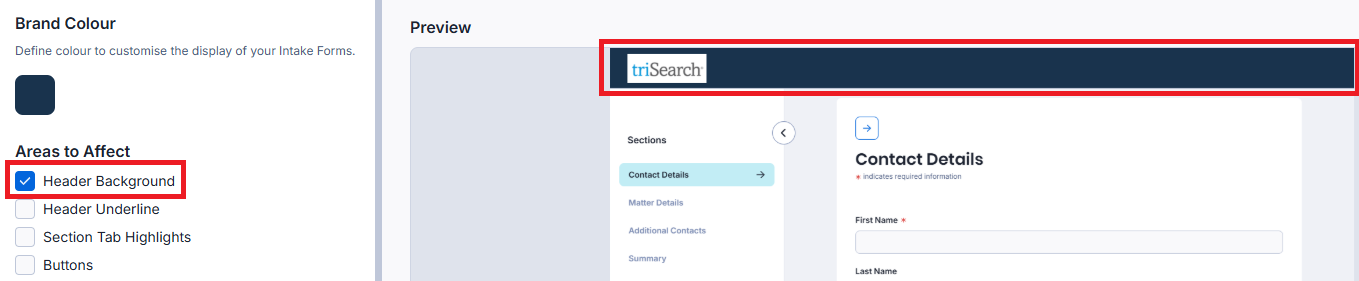
Header Underline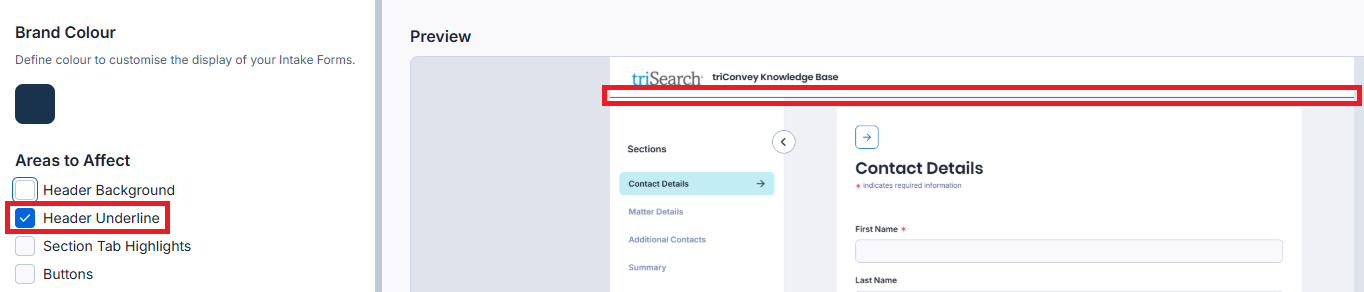
Section Tab Highlights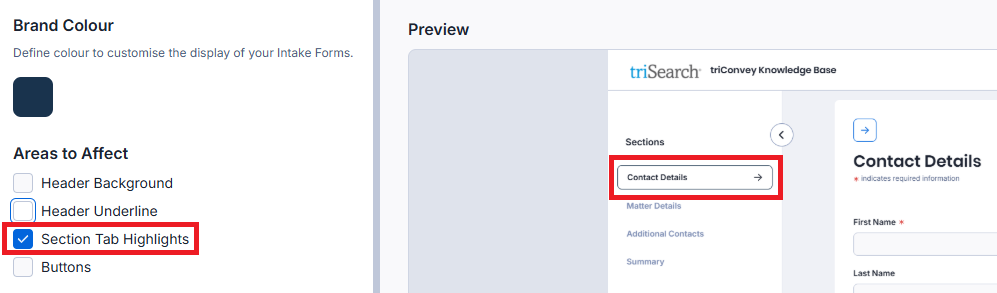
Buttons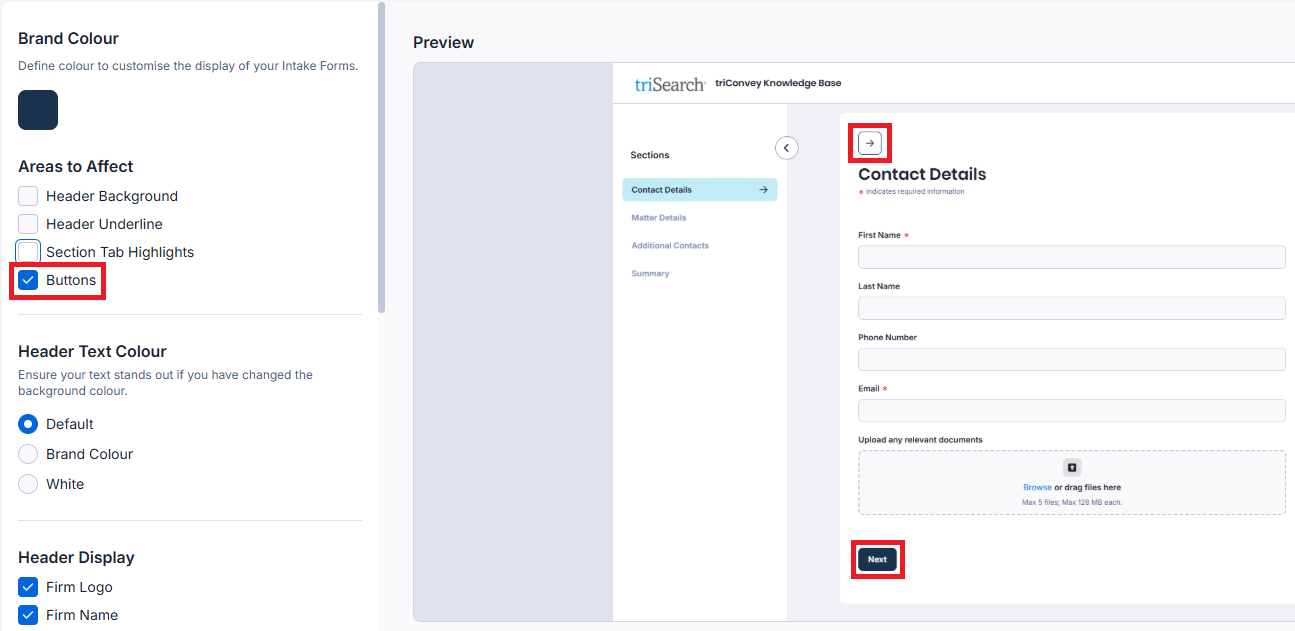
You can also choose to have your firm name in the header display in another colour: Default (Black), your Brand Color, or White.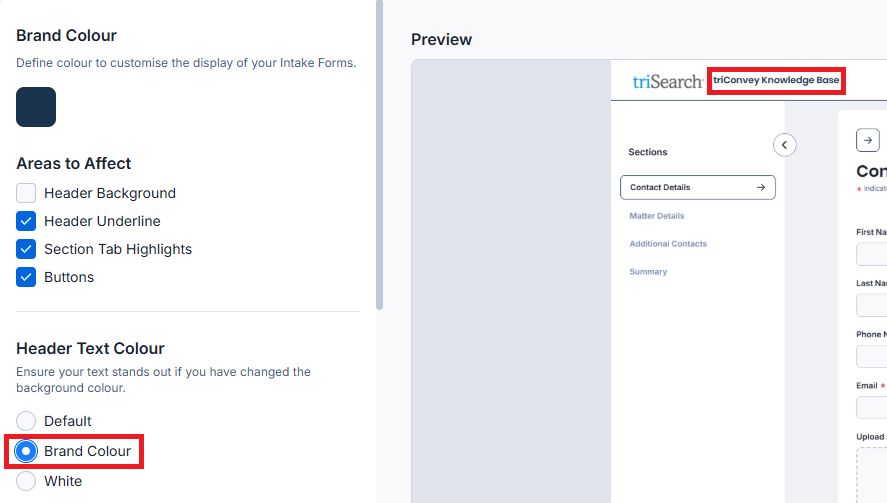
Changing the background colour of your forms
There are four options to choose from when changing the background colour of your Intake Forms:
- Default
- Brand Colour
- White
- Transparent - use this if your form is embedded on a website and you want it to blend into your existing page design.
Customising field and button shapes
There are four shapes you can choose from when customising your Input Fields (i.e. the fields where the client will enter information) and Buttons:
Square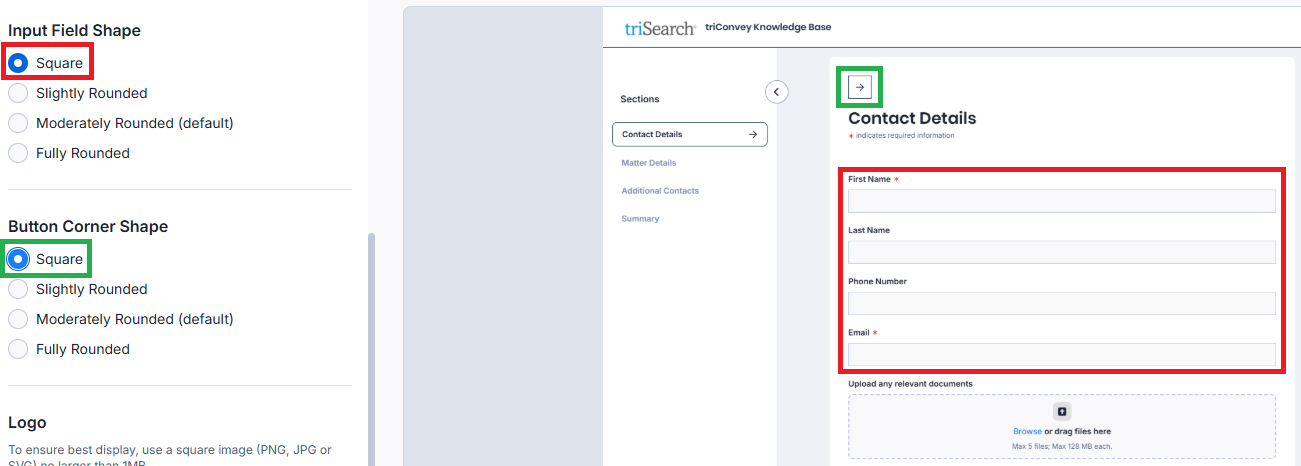
Slightly Rounded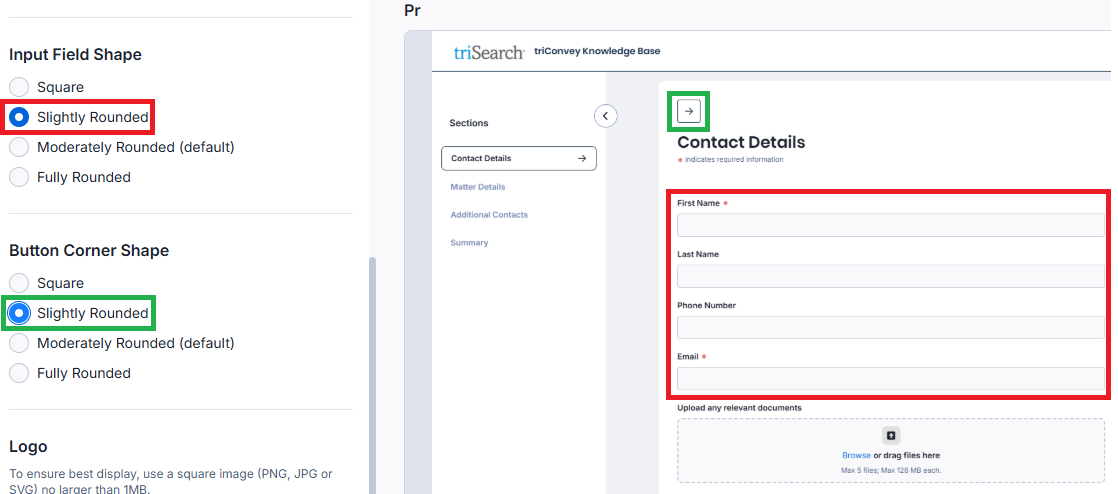
Moderately Rounded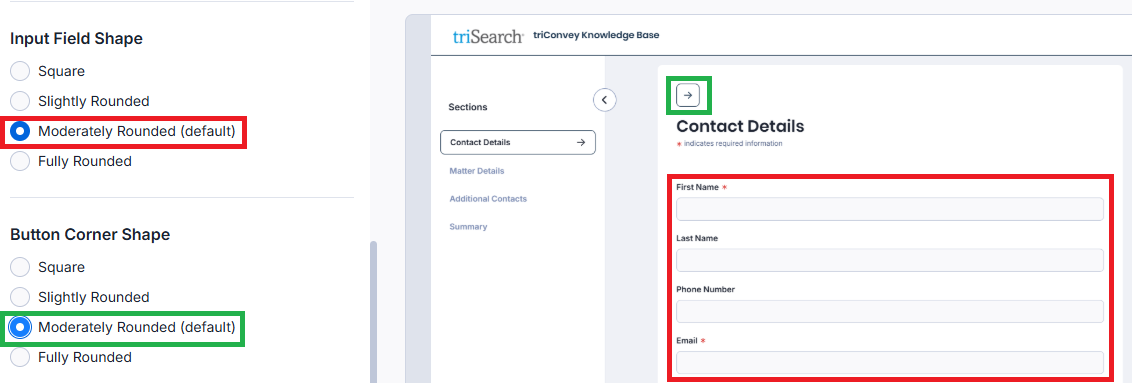
Fully Rounded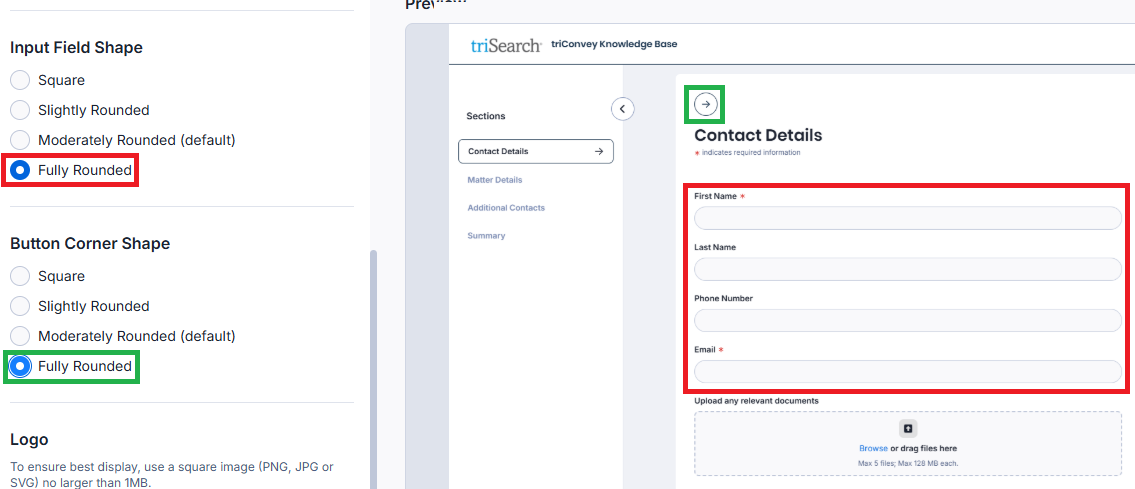
Changing your logo on Intake Forms
You can choose to have a different logo to your firm's main one to be displayed on Intake Forms. Upload your logo by selecting Replace.
Saving your changes
Select Save once you are done customising. Select Reset if you wish to revert back to the default colour scheme.
Good to Know
You can prevent any staff member from making changes to firm-wide settings like this one by disabling Settings access in their permissions.
Was this article helpful?
That’s Great!
Thank you for your feedback
Sorry! We couldn't be helpful
Thank you for your feedback
Feedback sent
We appreciate your effort and will try to fix the article