

Archie is your triConvey AI Matter Assistant. It provides answers to any questions you have about your matter.
Table of Contents
- Getting Started
- What Archie can access
- Who can use Archie
- Accessing and using Archie
- Viewing historical Archie conversations
- Conduct matter research
- Review documents
- Editing Word documents with Archie
- Draft correspondence
- Creating tasks, memos and events with Archie
- triConvey AI disclaimer
Getting Started
Archie uses agentic reasoning to understand the content in your matter, such as the matter details, documents, letters, and emails. It works through your request step-by-step, evaluates its own response and ensures every answer is complete, well-supported and verifiable.
In addition, Archie is deeply integrated with LawY, a legal research AI. When you ask legal questions, Archie can pull in relevant legal information and apply it to your matter, helping you connect the law to your specific case.
What Archie can access
Upon activating Archie, the following information in your matter becomes available to it once it finishes ingesting your data:
- Firm Details: Your firm's name and state, plus names and email addresses of every user in the firm.
- Basic Matter Info: Matter number, title, status, matter type and category, description, date opened, date closed, key dates and staff
- Matter Parties: The contact and role details of all parties listed in the matter, such as clients, the other side, their solicitors, and related parties such as executors, agents or guarantors
- Archie cannot look up contacts in your firm's wider contact list.
- Archie cannot look up contacts in your firm's wider contact list.
- Tasks: Subject, due date, assignee and completion status
- Events: Title, date/time and attendees
- Memos and File Notes attached to the matter
- Invoices and trust/office account details
- Archie cannot access time/fee entries, disbursements, payments or trust transaction history.
- Archie cannot access time/fee entries, disbursements, payments or trust transaction history.
- Matter Documents: Name, file type, folder, size, created and modified dates along with the full text
- View compatible file types and sizes.
- Archie cannot extract data from images, rendered PDFs and spreadsheets.
- When attaching matter files to a chat, their full text comes with your message. You can attach up to 20 files, and the message will be trimmed if the combined text is very long.
- View compatible file types and sizes.
Who can use Archie
By default, all users in your firm can access and use Archie. However, if you would like to disable Archie access for individual users and you have Firm Owner permissions, you can do so by accessing Staff and User Permissions in triConvey Settings.
Accessing and using Archie
To start using Archie:
1. Open a matter in the triConvey Desktop App.
2. Select the Archie tab or click the Archie button in the right-hand panel of the matter.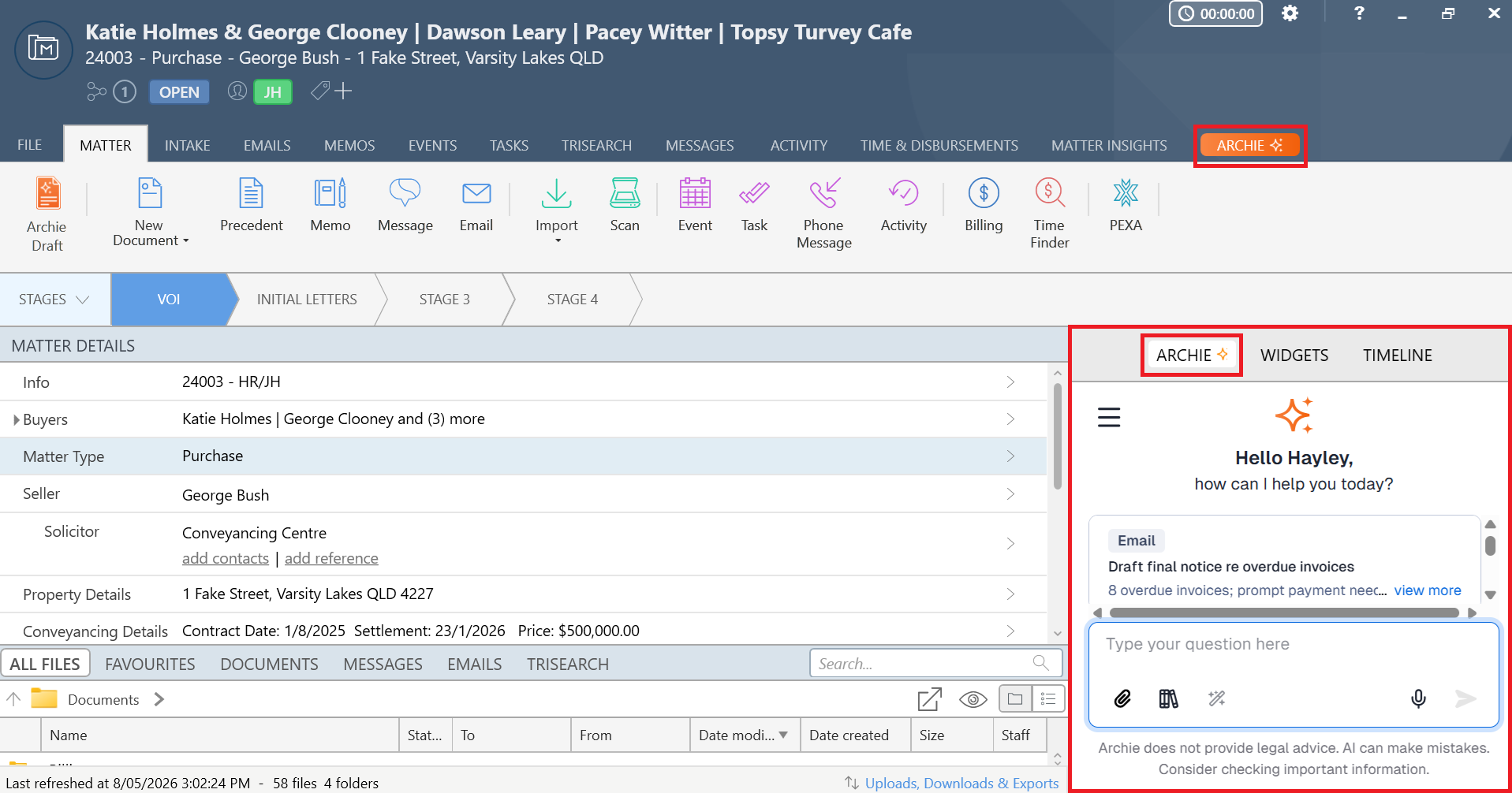
3. Once Archie has been enabled for your firm, it will index the 50 most recent matters your firm have worked on, allowing you to jump straight in and start using it.
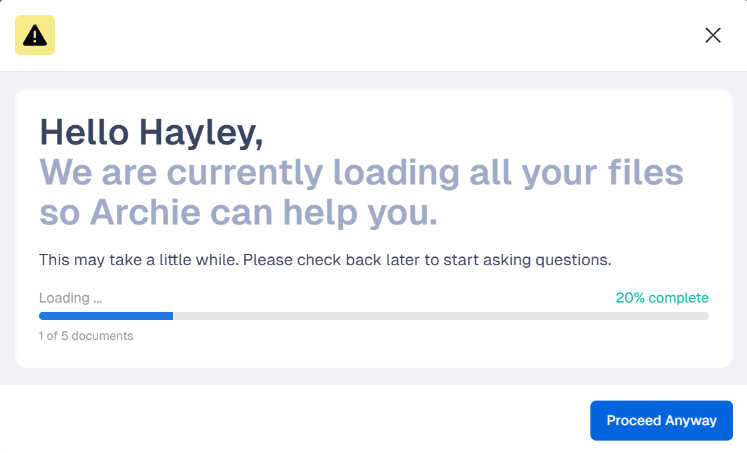
- For any matters outside of the 50 most recent, Archie may take some time to ingest its contents and you may encounter this loading window upon clicking the Archie tab. The more documents there are in this matter, the longer it may take.
4. Ask Archie a question by typing in the field at the bottom of the window. Additionally, you can also use the voice dictation option to ask your question by speaking it instead of typing it out.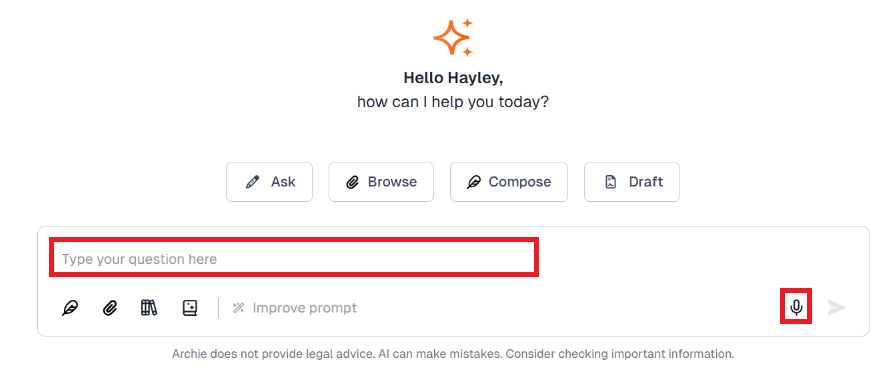
- Need some inspiration? Use the Ask, Browse, Compose and Draft buttons or the Suggested Next Steps options to get started.
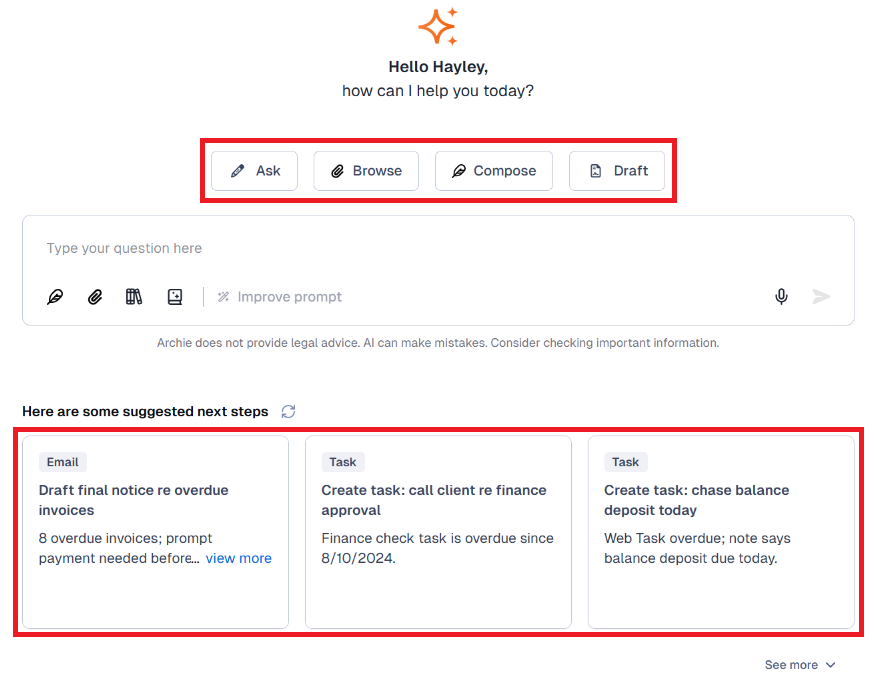
| Ask | a question about a document by selecting the Paperclip icon. | 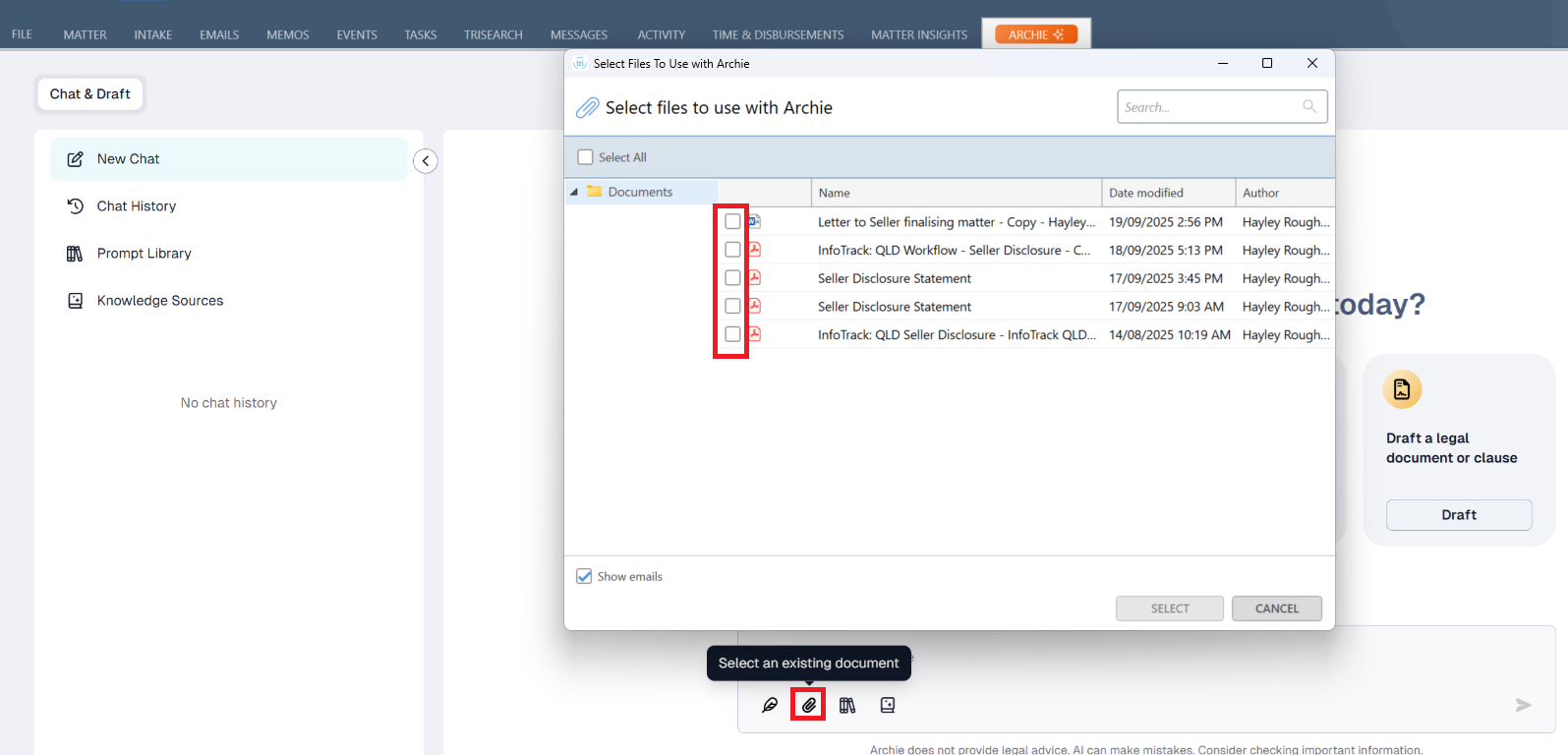 |
| Draft | correspondence or a legal document by selecting the Quill icon. Learn more about drafting correspondence with Archie. |  |
5. Archie will then generate a response based on your question.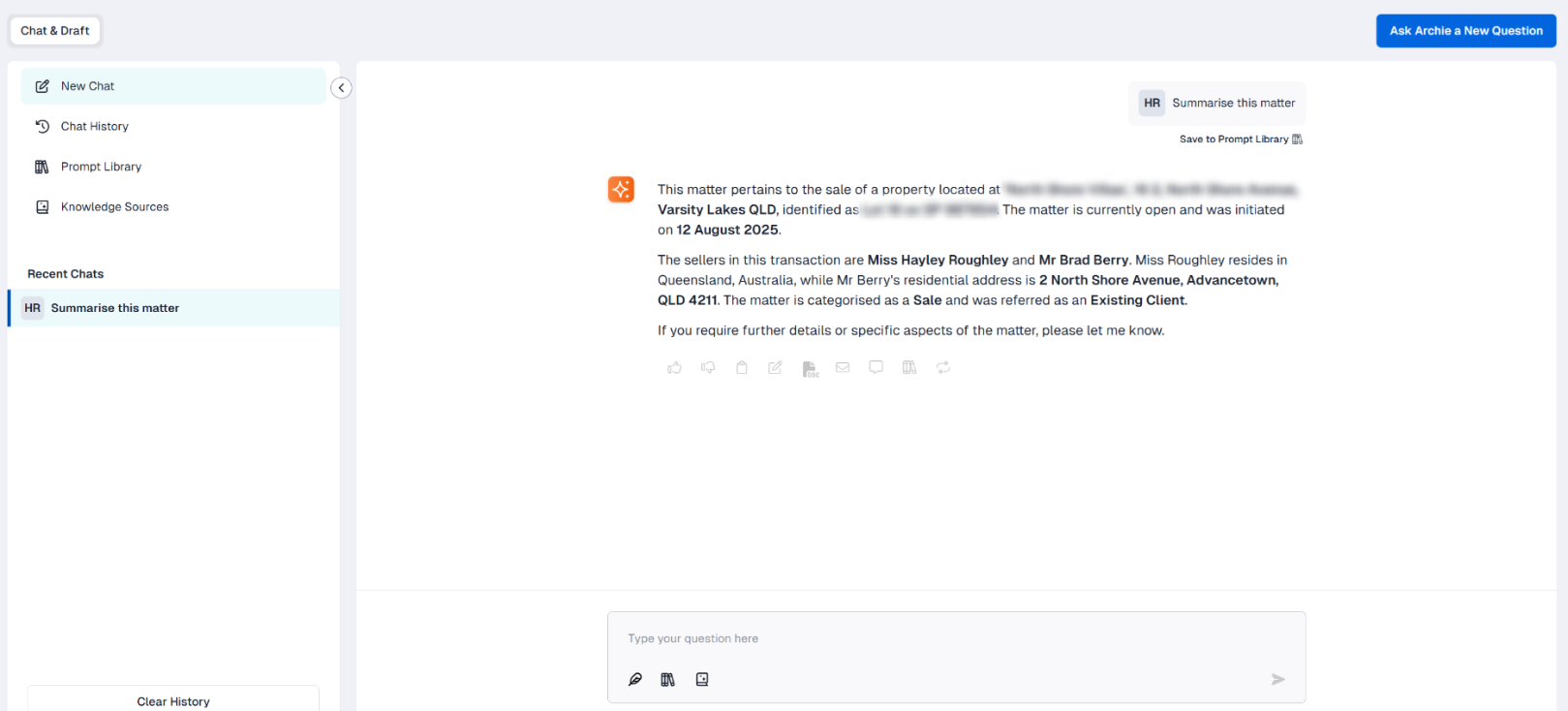
6. Some responses will cite a matter document as a source. Click on the document name to access a summary or preview of the document.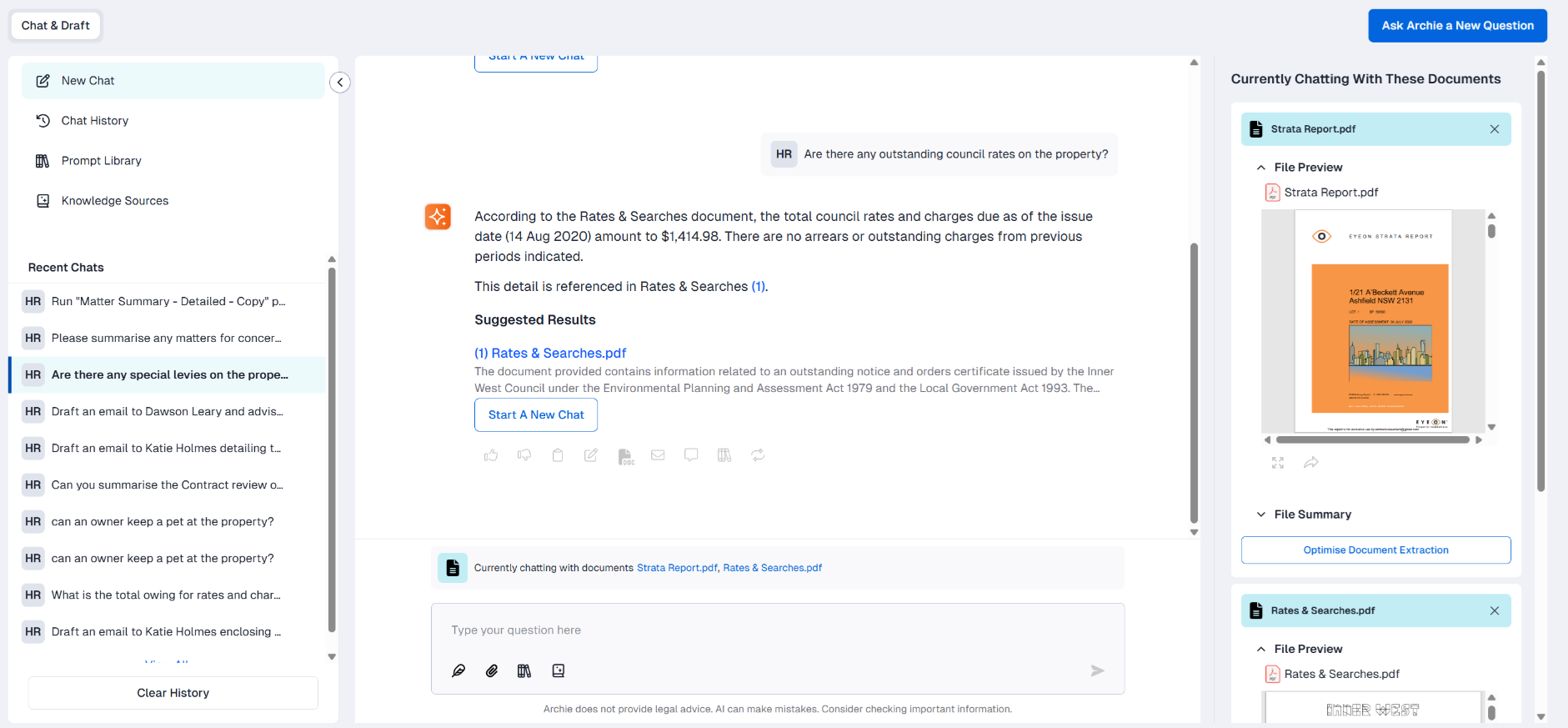
Under the suggested document, you can ask further questions about the specific document by selecting Start a New Chat. Learn more about reviewing documents with Archie.
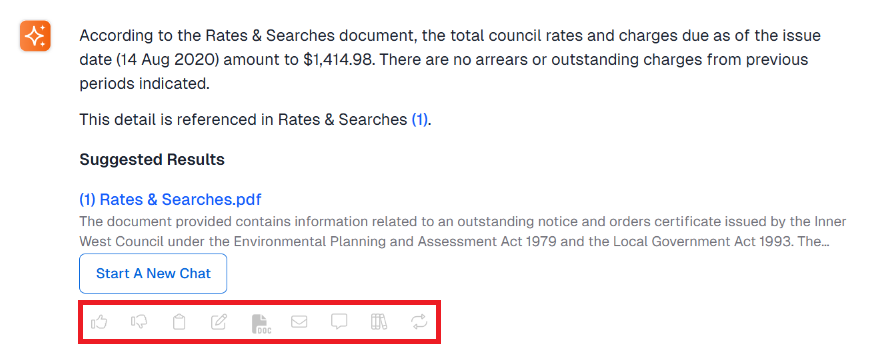
7. Scroll to the bottom of the response to:
- Give us feedback about the response with a thumbs-up or thumbs-down. This will help refine the quality of Archie's responses in real-time.
- Copy the response to your clipboard so you can paste it elsewhere on your computer.
- Save the response as a memo to your matter.
- Open the response in Microsoft Word (handy for drafting documents).
- Open the response in Microsoft Outlook (handy for drafting emails).
- Send the response as a Client Portal message.
- Regenerate a different response.
Viewing historical Archie conversations
The left panel will display a history of all questions you have asked Archie. Select Ask Another question to start a fresh conversation.
You can use the search bar to find a prompt you used in the past.
To see all prompts that other staff members have asked on the matter, use the square icons with initials. You will have the option to clear your own question history; you will not be able to clear other users' questions.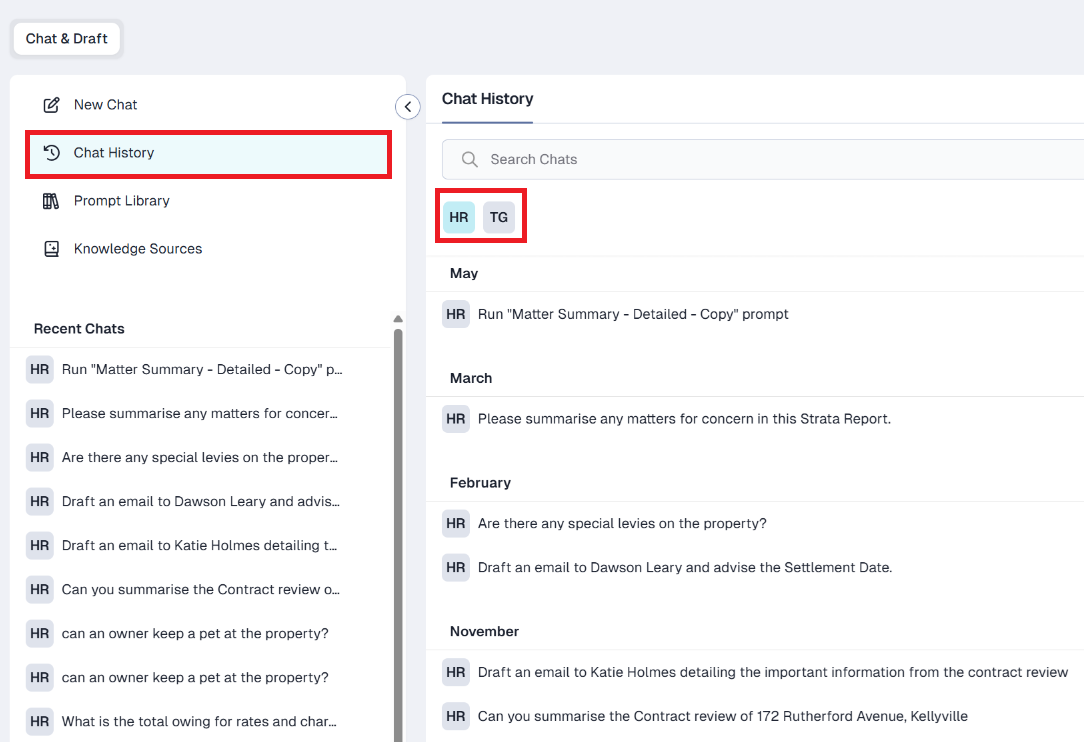
Conduct matter research
Archie can improve your productivity by answering questions about your matter. Learn more about using Archie for research.
Review documents
Archie can assist with document review by summarising, comparing, reviewing, or suggesting in matter documents. Learn more about using Archie to review documents.
Editing Word documents with Archie
Archie can be used as an assistant tool within Word documents, allowing you to edit and add any relevant content to documents with the added insights that Archie can provide on the matter that the document is attached to.
Learn more about using Archie in Word to edit documents.
Draft correspondence
Use Archie as your writing assistant to draft letters and emails to your clients. Learn more about using Archie for drafting correspondence.
Creating tasks, memos and events with Archie
Use Archie to create tasks, memos and events for a matter you're working in without having to interrupt your workflow.
Learn more about using Archie to create tasks, memos and events.
triConvey AI disclaimer
Like many AI software programs, Archie is a powerful tool that saves time and effort. However, while an answer may sound correct and read well, it may not be correct.
Archie is a matter assistant, not a legal assistant. Do not expect Archie to answer questions about legislation or case law in an accurate manner.
It is incredibly important to Trust but verify. Always read responses from Archie carefully to ensure that they are accurate.
We recommend verifying Archie's responses by checking the links to supporting documents provided at the bottom of the responses.
Was this article helpful?
That’s Great!
Thank you for your feedback
Sorry! We couldn't be helpful
Thank you for your feedback
Feedback sent
We appreciate your effort and will try to fix the article