

All contacts imported or created in triConvey can be viewed in the Contacts View.
Table of Contents
Edit your contacts
1. Either:
- select Contacts from the triConvey Home Dashboard; or

- type the name of the contact in the Quick Search bar.

2. Double-click on the contact to open the Contact Card, where you can edit the contact.
3. Select Save.
Learn more about entering contact information.
Important Note on editing contacts and implications on trust transactions

If you are editing the name of a contact that was created prior to 7 November 2025, trust transactions for this contact that were created prior to this date will also be updated with the new name.  To avoid compliance issues in this situation, we recommend:

1.    Creating a new contact card with the updated name and marking the existing one as 'Old'.

2.    Reversing the affected transaction.

3.    Choosing the new contact card for the transaction.

4.    Re-processing the affected transaction.

Trust transactions created after 7 November 2025 are unaffected.
Organise your Contacts View
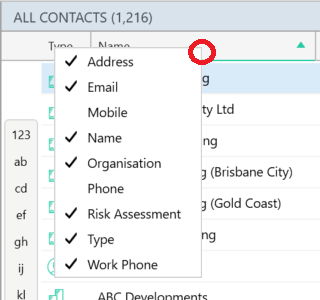
Right-click on the heading row at the top of the Contacts List to see currently hidden and displayed column information.
Click on the type of info you would like to add (remove, if ticked) to the Contacts List and the column will appear/disappear in the list view.
Company contacts that have been allocated to a Matter or Lead will automatically be sorted into folders on the left panel, depending on their role in the matter.
Use the bottom of the left-hand panel to filter the list to see a specific type of contact based on contact tag.

View contact details in a matter
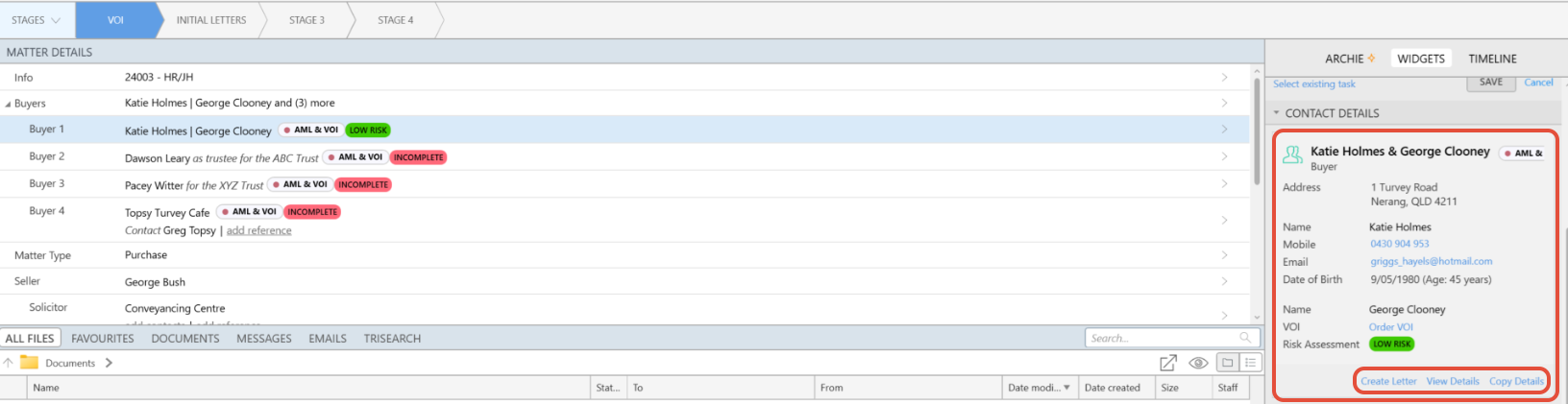
By single-clicking on a party in the Matter Details section, you can view their contact information in the Contact Details section on the right side of the matter window (Matter Widgets section of the matter window).
This section allows you to draft an email or letter to the party, or to view and/or make any necessary changes to their contact information. You can also copy the contact details if needed.
Was this article helpful?
That’s Great!
Thank you for your feedback
Sorry! We couldn't be helpful
Thank you for your feedback
Feedback sent
We appreciate your effort and will try to fix the article